Catalog Export
The Catalog Export page lets you create and manage export configurations. Each configuration generates a product feed for a specific country/language/currency combination, with its own download URL.
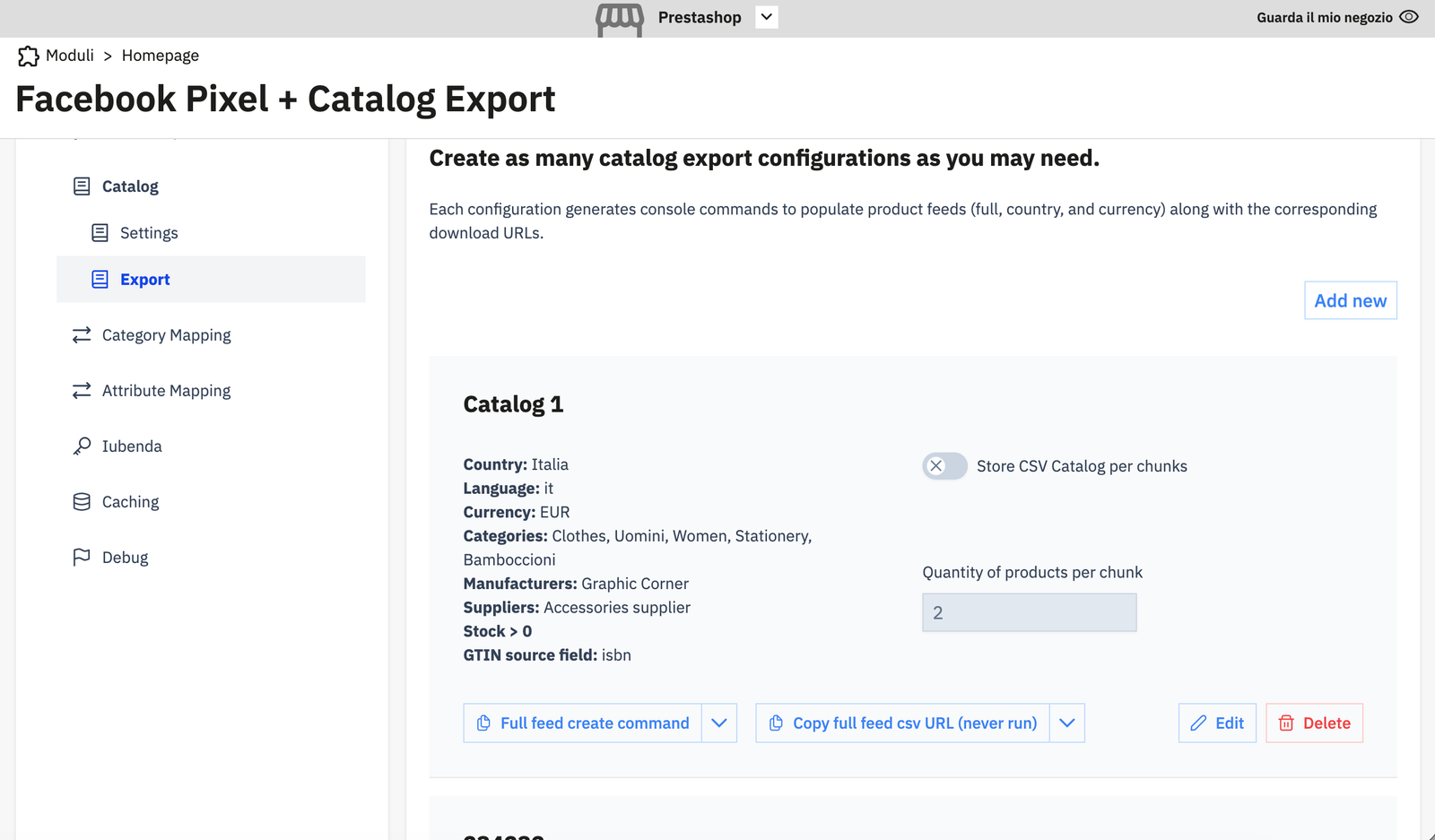
Creating an export configuration
Click Add new to open the configuration dialog.
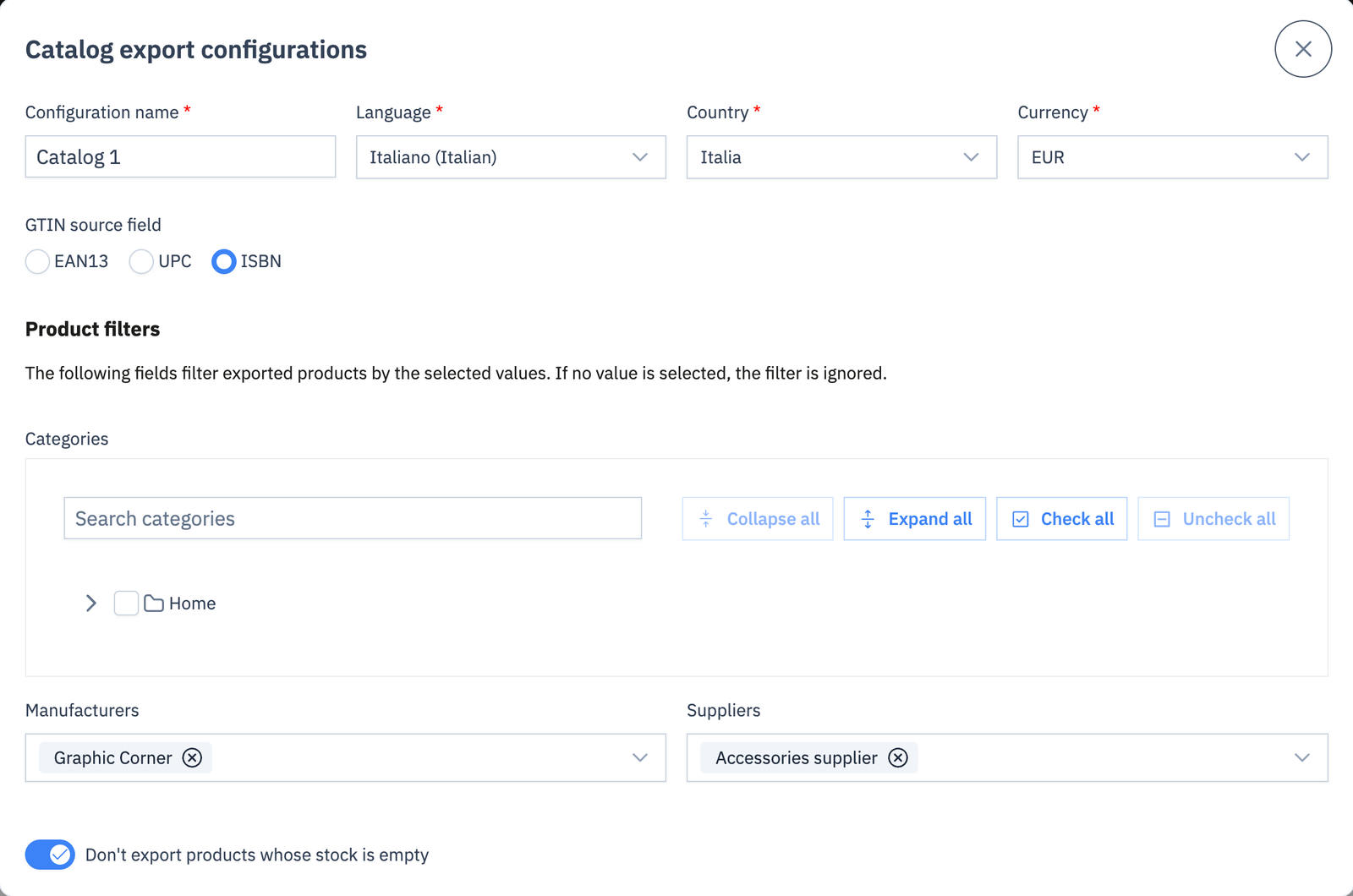
Configuration name (required)
A label to identify this export in the backoffice (e.g. "Italy EUR", "US Feed").
Language (required)
The language used for product names, descriptions, and links in the feed.
Country (required)
The target country. Used for price localization and the feed URL.
Currency (required)
The currency for prices in this feed.
GTIN source field
Which product field to use for the gtin column in the feed.
| Option | Description |
|---|---|
| EAN13 | Uses the product's EAN-13 barcode field |
| UPC | Uses the product's UPC field |
| ISBN | Uses the product's ISBN field |
Product Filters
Filters narrow down which products are included in this export. If no value is selected for a filter, the filter is ignored (all products pass).
| Filter | Description |
|---|---|
| Categories | Only export products in these PS categories (and their children) |
| Manufacturers | Only export products from these manufacturers/brands |
| Suppliers | Only export products from these suppliers |
| Don't export products whose stock is empty | Per-configuration stock filter; overrides the global setting for this export |
Store CSV Catalog per Chunks (chunk mode)
When enabled, the export is split into chunks of N products. Each time the export URL is called (or the console command runs), one chunk is processed and saved. The final CSV is assembled after all chunks are complete.
Quantity of products per chunk — how many products to process per call. Typical value: 100–500.
This mode is useful for very large catalogs that would time out in a single request.
Export files
Each export configuration produces up to three CSV files:
| File | Contents |
|---|---|
feed_{token}.csv |
Full feed with all columns |
language_{token}.csv |
Language-specific override feed (title, description, links) |
country_{token}.csv |
Country-specific price override feed |
Running exports
Via console command (recommended for cron)
Each export configuration shows a Full feed create command button that copies the exact Symfony console command to your clipboard:
--token— runs only the export with this token. Omit to process all exporters.--all— processes all chunks in one run (suitable for full regeneration). Omit to process one chunk per run (cron-safe for large catalogs).
Recommended crontab entry (runs once per hour, processes one chunk per call):
For a large catalog with chunk mode enabled, run more frequently (e.g. every 5 minutes) until all chunks complete.
Via download URL
Each export shows a Copy full feed CSV URL button. This URL downloads the pre-built CSV file generated by the console command or the chunk-processing endpoint.
The URL format is:
Change type to lang or country for the other feed types. Returns HTTP 404 if no export file exists yet — generate it first using the console command or the HTTP endpoint below.
Via HTTP chunk-processing endpoint
As an alternative to the console command, export generation can be triggered via HTTP. Each call processes one chunk:
- While processing: returns
{ status, currentChunk, totalChunks, processedProducts } - When complete: streams the CSV directly
Warning
If chunk mode is disabled, a single call will attempt to process the entire catalog in one HTTP request and may time out. Use the console command for large catalogs.
Providing the feed URL to Facebook
- In Meta Commerce Manager, go to Catalog > Data Sources > Add Data Source.
- Choose Scheduled Feed.
- Paste the download URL (type=full) from the export configuration.
- Set the schedule to match your cron frequency (hourly or daily).