Pixel Setup
The Pixel Setup page is where you configure your Facebook Pixel(s). Each pixel can be scoped to specific countries and currencies so your tracking stays accurate across different regions and campaigns.
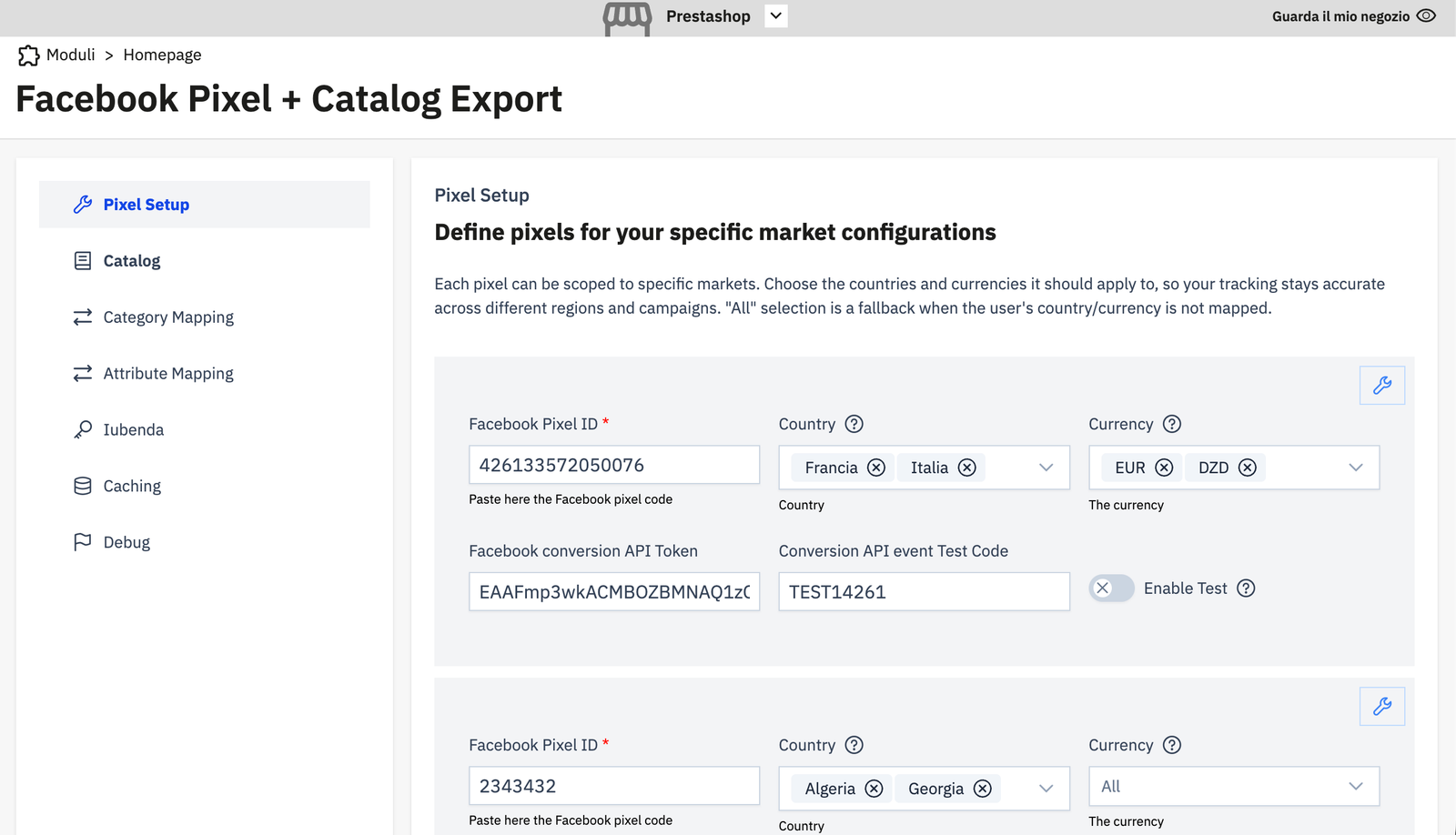
How pixel selection works
When a visitor lands on your store, the module determines which pixel to fire by matching the visitor's country and currency against your configured pixels:
- It looks for a pixel whose country list includes the visitor's country and whose currency list includes the visitor's currency. This is the most specific match.
- If no exact match is found, it looks for a pixel with a matching country but no currency restriction (or matching currency but no country restriction).
- If still no match, it uses a pixel that has no country and no currency restrictions at all — the "global fallback" pixel.
A pixel with no country/currency restrictions acts as a catch-all for any visitor context not explicitly matched by another pixel.
Fields
Facebook Pixel ID (required)
Your numeric Pixel ID from Meta Events Manager. Example: 426133572050076.
Country
One or more countries this pixel applies to. Select from the list of your active PS countries. Leave empty to make this pixel a global fallback.
Currency
One or more currencies this pixel applies to. Leave empty to match all currencies.
Facebook Conversion API Token (required for server-side tracking)
The access token generated in Meta Events Manager → Settings → Generate Access Token. Without this, only browser-side pixel events will fire; the Conversions API (server-side) channel will be disabled for this pixel.
Conversion API Event Test Code
A test event code (e.g. TEST14261) provided by Meta's Test Events tool. When enabled, all CA events sent by this pixel will carry the test code so they appear in the Test Events interface for validation.
This code is only active for 1 hour after you save it. After that, the test code is automatically ignored even if the field still shows a value — this prevents test events from polluting production data indefinitely.
Click Enable Test to activate the test code. Click the ✕ to disable it immediately.
Multi-pixel setup
You can add as many pixel configurations as needed. Common patterns:
- One pixel per market — configure separate pixels for Italy (EUR), Germany (EUR), United States (USD), etc., each with its own CAPI token.
- One global pixel with regional overrides — add a global pixel (no country/currency restriction), then add country-specific pixels that override it for specific markets.
To add a new pixel, click the + (add) button in the top-right of the pixel list.
Tip
After saving a new pixel, immediately open Meta's Test Events tool and trigger a page view on your store to confirm events are arriving with the correct Pixel ID.